Two-Factor Authentication Guide

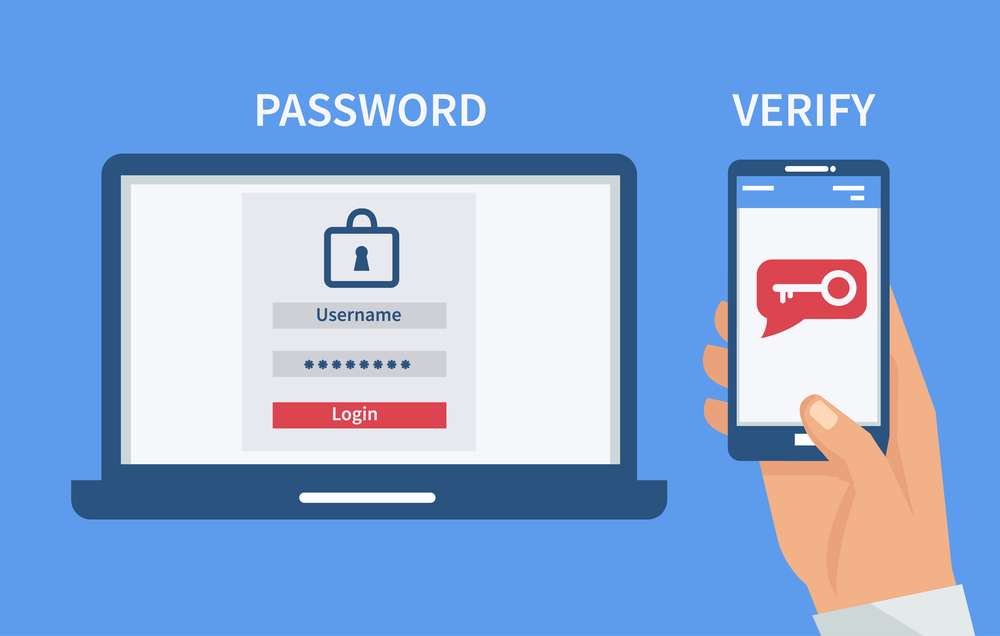
Two-Factor Authentication, also called 2FA, is a security method that protects your online accounts. It adds a second step after entering your password. This means even if someone steals your password, they still cannot log in without the second verification. In 2026, cyber attacks are increasing, and passwords alone are not enough. 2FA is now one of the most trusted and effective ways to secure personal data, financial accounts, cloud storage, social media, and business systems.

This guide explains 2FA in a friendly and human way, so anyone—students, parents, and professionals—can understand it and use it confidently.

Why 2FA Is Important

The internet connects everything today. We use it for messaging, shopping, banking, learning, entertainment, and storing private files. Hackers try to break into accounts to steal money or personal data. Many attacks succeed because users rely only on passwords. Passwords can be guessed, leaked, or stolen through phishing or malware. That is why 2FA matters. It creates a second barrier, making hacking much harder.

In 2026, threats like SIM swapping, deepfake voice scams, token theft, AI-generated phishing, and automated malware attacks are more common. 2FA blocks many of these threats by requiring extra proof of identity.

How 2FA Works

2FA works by verifying two things:

  1. Something you know → your password
  2. Something you have or are → like your phone, fingerprint, face scan, or authentication code

After you enter your password, the system asks for a second verification. This could be a code from an app, a message, a fingerprint scan, or a prompt on your device. Only when both steps are correct, access is granted.

Types of 2FA

There are multiple types of 2FA, and each has different security levels.

1. Authentication App Codes

These are codes generated inside apps like Google Authenticator, Microsoft Authenticator, Authy, or Aegis. The app creates a new 6-digit code every 20–30 seconds. Since it works offline, hackers cannot intercept it easily. This is one of the safest 2FA methods.

2. SMS Codes

A verification code is sent to your phone number through text message. This method is common but less secure than authentication apps because hackers can sometimes steal your phone number using SIM swap fraud and receive your codes.

3. Email Codes

A code is sent to your email inbox. This is safer than SMS but still risky if your email account is not secured with 2FA itself. If hackers enter your email, they can approve login requests.

4. Fingerprint or Face ID

This uses biometric authentication. Your phone or laptop scans your fingerprint or face to verify you. It is safe and fast, but it depends on your device. If your device is stolen and unlocked, hackers may try to use saved login sessions.

5. Push Notification Approval

Instead of codes, you receive a login approval prompt on your trusted device. You tap “Yes” to approve. This method is secure but can be dangerous if you approve prompts without checking.

6. Hardware Security Keys

These are physical USB or NFC keys like YubiKey, Titan Key, or Thetis FIDO2 keys. You insert or tap the key to approve login. This is the strongest 2FA method, mostly used for business or high-security accounts.

Which 2FA Method Is Best?

The best ranking for security is:

  1. Hardware security key
  2. Authentication app code
  3. Push notification prompt
  4. Email code
  5. SMS code

So if you want the strongest protection, choose authentication apps or hardware keys instead of SMS.

Where to Use 2FA

You should enable 2FA on every important account, including:

  • Gmail, Outlook, ProtonMail, or any email account
  • Google Drive, OneDrive, iCloud, Dropbox
  • Facebook, Instagram, TikTok, YouTube, X
  • Banking apps, PayPal, Sadapay, NayaPay, Wise
  • Crypto wallets like Binance, Coinbase, MetaMask, Trust Wallet
  • Gaming accounts like Steam, Epic Games, Xbox, PlayStation, Roblox
  • Work systems, admin dashboards, cloud servers

Since your email is the main key to reset other passwords, securing it with 2FA is the top priority.

Step-by-Step: How to Enable 2FA

Most platforms follow a similar process. Here is a general step-by-step method:

  1. Open the app or website manually
  2. Go to Settings
  3. Find Security or Account Protection
  4. Select Two-Factor Authentication
  5. Choose a method (preferably authentication app or hardware key)
  6. Scan the QR code shown on the screen using your authentication app
  7. Enter the generated code to confirm
  8. Save backup codes safely

Backup codes are emergency login codes that work if you lose access to your 2FA device. These codes must be saved offline, never stored in screenshots in cloud storage or notes apps.

Common 2FA Risks You Must Avoid

2FA is powerful, but mistakes can make it weak. Avoid these risks:

Approving Without Checking

Hackers may try to trick you into approving login prompts. Always read the prompt carefully before tapping “Yes.”

Saving Backup Codes Online

Never save backup codes in cloud notes, Google Drive, or screenshots. If cloud is hacked, backup codes are stolen too.

Using SMS Only

SMS 2FA is better than nothing, but still risky. Always add an authentication app if available.

Losing Your 2FA Device

If you lose your phone or authentication app, you may lose access to accounts. So always:

  • Keep backup codes offline
  • Add a secondary 2FA method if possible
  • Register a recovery email that also has 2FA

Using Untrusted Apps for 2FA

Always use popular, official, open-source, or trusted authentication apps. Don’t download random 2FA apps.

How Hackers Try to Bypass 2FA in 2026

Hackers use advanced techniques, such as:

1. SIM Swap Fraud

They trick telecom support into giving them your phone number. Then they receive your SMS 2FA codes.

2. Token Theft

Malware steals session cookies or login tokens from browsers. This can bypass 2FA if the session is already active.

3. Fake 2FA Pages

Phishing sites imitate real login pages and steal passwords + 2FA codes at the same time.

4. AI Voice Impersonation

Hackers clone voices to pretend to be account owners and convince support teams to disable 2FA.

5. Fake Support Calls

They call victims pretending to be banks or companies, asking for 2FA codes to “verify account issues.”

But remember: No real company ever asks for your 2FA code directly. If someone asks for it, it is 100% a scam.

Extra Protection Tips to Strengthen 2FA

Use 2FA on Your Email First

Because email controls recovery of all other accounts.

Use Passkeys Along With 2FA

Passkeys use device-based identity and are harder to phish.

Lock Your Authentication App

Use biometric lock or PIN inside the 2FA app if available.

Use a Separate Device for 2FA if Possible

For very important accounts, use 2FA on a device you don’t use for browsing or downloads.

Turn on Login Alerts

So you know when someone tries to enter your account.

Limit Recovery Options

Disable password recovery questions because answers can be guessed or collected from social media.

Use Hardware Keys for Business or Crypto

Because they provide the strongest defense.

What to Do if Someone Gets Your 2FA Code

If you think your 2FA code was shared by mistake, act fast:

  1. Change your password immediately
  2. Remove old 2FA setup and generate a new one
  3. Revoke all logged-in devices or sessions
  4. Check login history
  5. Contact official support—but never share codes during the call

2FA for Mobile vs Laptop

On Mobile

2FA protects apps and cloud logins, but malware can misuse permissions. Always install apps from official stores and deny unnecessary permissions.

On Laptop/PC

2FA protects browser logins, but malware can steal cookies. Always use antivirus, avoid cracked downloads, and clear cookies often.

Future of 2FA in 2026 and Beyond

By 2026, 2FA is evolving. We now see:

  • Password + passkey + 2FA combo security
  • Biometric-based 2FA
  • AI security that detects fake login behavior
  • FIDO2 hardware keys becoming more popular
  • 2FA required by default on major platforms

Soon, logging in with only a password will become outdated.

Final Thoughts

Two-Factor Authentication is not just a second code—it is your digital bodyguard. The safest options are authentication apps and hardware keys. Always secure your email first, save backup codes offline, verify login prompts, and never share 2FA codes with anyone, even if they sound real. Cybersecurity in 2026 is advanced, but 2FA gives normal users expert-level protection.

Your accounts hold your memories, identity, work, and money. Protect them with 2FA, stay aware, and you will always be one step ahead of hackers.
Best Ways to Protect Your Data

Your data is one of the most valuable things you own. It includes your name, photos, messages, bank details, passwords, school or work files, and even your online behavior. In 2026, almost everything is digital. We save information on phones, laptops, clouds, apps, and smart devices. This makes life easier, but it also makes data easier to steal. Hackers, scammers, companies, and even unsafe apps try to access personal information. Protecting your data means keeping it safe from being stolen, leaked, changed, or misused.

Many people think data protection is only for experts. But the truth is, anyone who uses the internet must know how to protect their information. This article explains the best and easiest ways to do that, in a simple, human, and practical way.

Understand What Needs Protection

Before protecting your data, you need to know what you are protecting. Your important data can include:

  • Personal identity (name, phone, email, CNIC, address)
  • Login details (passwords, recovery codes)
  • Financial information (bank apps, cards, crypto wallets)
  • Private files (documents, PDFs, presentations, spreadsheets)
  • Media (photos, videos, voice recordings)
  • Communication (WhatsApp, Messenger, SMS, emails)
  • Cloud backups (Google Drive, iCloud, OneDrive)
  • Browsing data (cookies, saved logins, search history)

If any of this data gets stolen, it can be used for scams, identity theft, financial loss, or blackmail.

Use Strong and Unique Passwords

Passwords are the first wall between you and hackers. In 2026, weak passwords are no longer acceptable. A strong password should be:

  • At least 12–16 characters long
  • A mix of letters, numbers, and symbols
  • Not based on your name, birth year, or simple words
  • Not reused on multiple apps or sites

If one platform leaks your password and you use the same one everywhere, hackers can enter all your accounts easily. That is why every account must have a different password.

A password manager is also a smart tool. It saves passwords safely and helps create strong ones so you don’t have to remember everything.

Enable Two-Factor Authentication (2FA)

Two-factor authentication adds an extra security step after your password. Even if someone steals your password, they still can’t enter your account without the second step. 2FA can come in different forms:

  • Authentication app codes (Google Authenticator, Microsoft Authenticator)
  • SMS or WhatsApp security codes
  • Email confirmation
  • Fingerprint or Face ID
  • Passkey verification

Authentication app codes are safer than SMS because SIM swap scams are also rising. 2FA should be enabled on:

  • Email accounts
  • Social media apps
  • Cloud storage
  • Banking apps
  • Crypto wallets
  • Gaming accounts

This is one of the strongest ways to secure your information.

Keep Your Devices Updated

Software updates are not just for new features. Most updates also fix security holes that hackers use to enter systems. Always update:

  • Phone operating system (Android or iOS)
  • Laptop or PC system (Windows, Linux, MacOS)
  • Apps (browser, social media, storage, email, etc.)
  • Antivirus software
  • Smart home device firmware

Old and outdated systems are the easiest targets for cyber attacks.

Install Trusted Security Tools

Real security tools help protect your data by stopping malware, spyware, phishing sites, and harmful downloads. You should always use:

  • A trusted antivirus or endpoint protection
  • A firewall
  • A safe browser with phishing protection
  • An app permission monitor (on phones)
  • A secure VPN if you use public networks

But be careful—fake antivirus apps also exist. Always download security tools from official sources, not from random websites or cracked versions.

Avoid Public Wi-Fi Without Protection

Public Wi-Fi is common in 2026 at airports, restaurants, malls, universities, and hospitals. But hackers can create fake Wi-Fi networks that look real. These fake networks steal data or infect devices when you connect. To stay safe:

  • Don’t open bank apps or sensitive files on public Wi-Fi
  • Use a trusted VPN if you must connect
  • Turn off auto-connect Wi-Fi on your phone
  • Verify the network name from staff before connecting

Mobile data or personal hotspot is always safer than open Wi-Fi.

Backup Your Data Offline

Backups save you when data gets deleted, corrupted, or locked by ransomware. Many people back up data only in cloud storage, but hackers can attack cloud backups too. So always keep a copy offline using:

  • External hard drive
  • USB flash drive
  • SSD storage
  • Local computer storage not synced to cloud
  • Encrypted storage vaults

Important files should be backed up at least once every 7–15 days.

Be Careful With App Permissions

Many apps ask for access to contacts, camera, microphone, messages, files, location, or gallery. Not all apps are safe. Some steal data legally because you allowed it. Before granting permission, ask yourself:

  • Does this app really need this access?
  • Is it from a trusted company?
  • Do other users report it as safe?

Examples:

  • A calculator app does NOT need camera or contacts
  • A wallpaper app does NOT need mic or messages
  • A game mod menu does NOT need SMS or storage access

Always deny unnecessary permissions.

Avoid Phishing and Fake Links

Phishing attacks in 2026 are more personalized and AI-generated. Hackers send fake links through:

  • Email
  • SMS
  • WhatsApp
  • Discord
  • Instagram messages
  • QR codes

These links may look exactly like real login pages or official services. To avoid phishing:

  • Never click links from unknown senders
  • Always check the domain before logging in
  • Don’t open files sent from random messages
  • Be cautious even if the message looks urgent
  • Never scan random QR codes

If in doubt, open the app manually instead of clicking a link.

Use Encryption for Sensitive Files

Encryption locks files with a secret key or password. Even if someone steals your storage device or hacks your cloud, encrypted files cannot be opened easily. You can encrypt:

  • Documents
  • Storage drives
  • Phone backups
  • Cloud folders
  • Password vaults

Many modern devices support built-in encryption. Always turn it on.

Monitor Your Accounts Regularly

Hackers may enter silently without changing passwords immediately. Always check your accounts for:

  • Unknown login locations
  • Unrecognized devices
  • Sudden password reset emails
  • New recovery options added
  • Data missing or modified

Most major platforms show login history. Review it every 7–10 days.

Don’t Use Cracked Software

Cracked software is one of the top sources of malware and spyware. Even if it looks like a good deal, it can:

  • Steal saved passwords
  • Upload your files to hackers
  • Install backdoors
  • Join your device to botnets
  • Spy on your screen
  • Attack your banking or social media apps

Always use original software, even if it means using a free official version instead.

Protect Your Browser Data

Browsers save cookies and login sessions so you don’t have to type passwords again. But these cookies can be stolen. To protect browser data:

  • Clear cookies regularly
  • Disable “Save password” for sensitive sites if not using a password manager
  • Turn on browser protection shields
  • Avoid downloading random extensions
  • Use only trusted add-ons

Browser extensions can also spy on you if unsafe.

Be Careful What You Share Online

Once data is uploaded to the internet, it can live forever. Avoid sharing:

  • Passwords or recovery codes
  • Personal ID numbers
  • Private home photos that reveal address or location
  • Financial screenshots
  • Private conversations
  • Personal documents

Even social media quizzes can steal data by asking questions like “first school name” or “pet name,” which are also common password hints.

Use Passkeys Instead of Passwords When Possible

Passkeys are replacing passwords in 2026. They use device-based authentication like fingerprint or Face ID and cannot be phished or reused. If a platform supports passkeys, always use them.

Educate Yourself and Others

Cyber attacks target people who are unaware. The strongest protection is knowledge. Teach your family, classmates, and coworkers to:

  • Use 2FA
  • Avoid phishing
  • Update devices
  • Not install cracked apps
  • Backup data safely
  • Protect personal information

When more people become educated, hackers get fewer victims.

Final Thoughts

Data protection is not complicated if you follow smart habits. Use strong passwords, enable 2FA, update devices, avoid public Wi-Fi, don’t trust unknown links, control app permissions, backup data offline, and always stay alert. In 2026, threats are advanced, but protection is stronger when users are aware. Your data is yours—protect it like treasure, because in the digital world, it truly is.